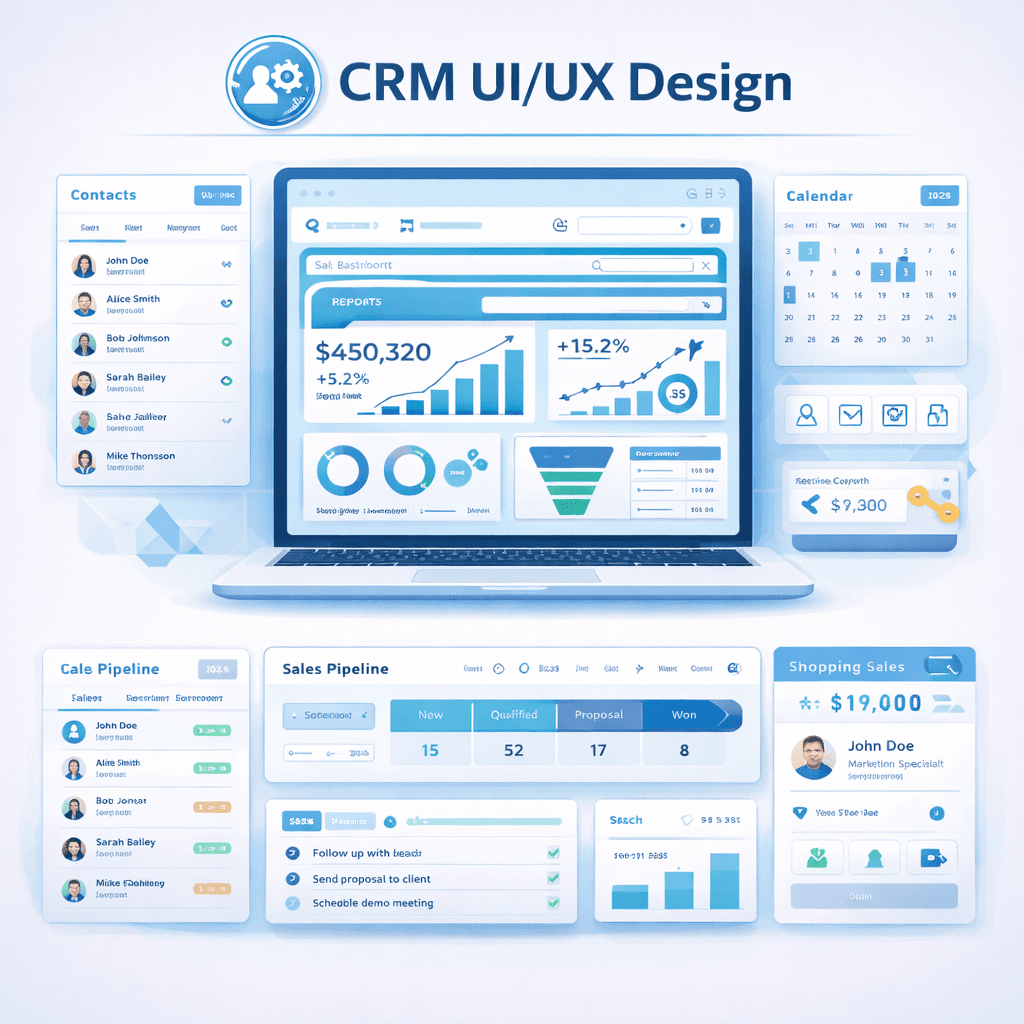
Introduction: Why CRM Design Matters More Than Features
A CRM packed with powerful features is useless if no one uses it. Studies show that up to 70% of CRM implementations fail due to poor user adoption—and one of the biggest culprits is a confusing, cluttered interface. Great CRM design isn’t just about aesthetics; it’s about creating intuitive experiences that help sales, support, and marketing teams do their jobs faster. In this guide, we’ll explore the principles behind user‑friendly CRM dashboards, essential UI best practices, and how to design for mobile users who are increasingly working on the go.
1. Designing User‑Friendly CRM Dashboards
The dashboard is the home base for most CRM users. A well‑designed dashboard provides at‑a‑glance insights without overwhelming the user. Here’s how to get it right:
Role‑based personalization – Sales reps need their pipeline, tasks, and recent activities; managers need team performance metrics; executives need high‑level forecasts. Design separate dashboard layouts for each role. Card‑based layout – Group related metrics into cards (e.g., “Deals Closing This Week,” “Recent Notes”). Cards can be rearranged, collapsed, or hidden based on user preference. Prioritize key metrics – Limit to 5–7 core KPIs. Use visual indicators (progress bars, trend arrows) to make performance clear at a glance. Contextual actions – Allow users to take action directly from the dashboard: add a task, log a call, or move a deal without navigating away. Empty states matter – When a user first logs in or has no data, provide helpful guidance (e.g., “Add your first deal”) with clear calls to action. Smart defaults – Show the most relevant data for the time period (e.g., “This week” for sales reps, “This quarter” for managers). Allow easy date range switching. Real‑time updates – Dashboards should reflect changes instantly when data is entered or updated.
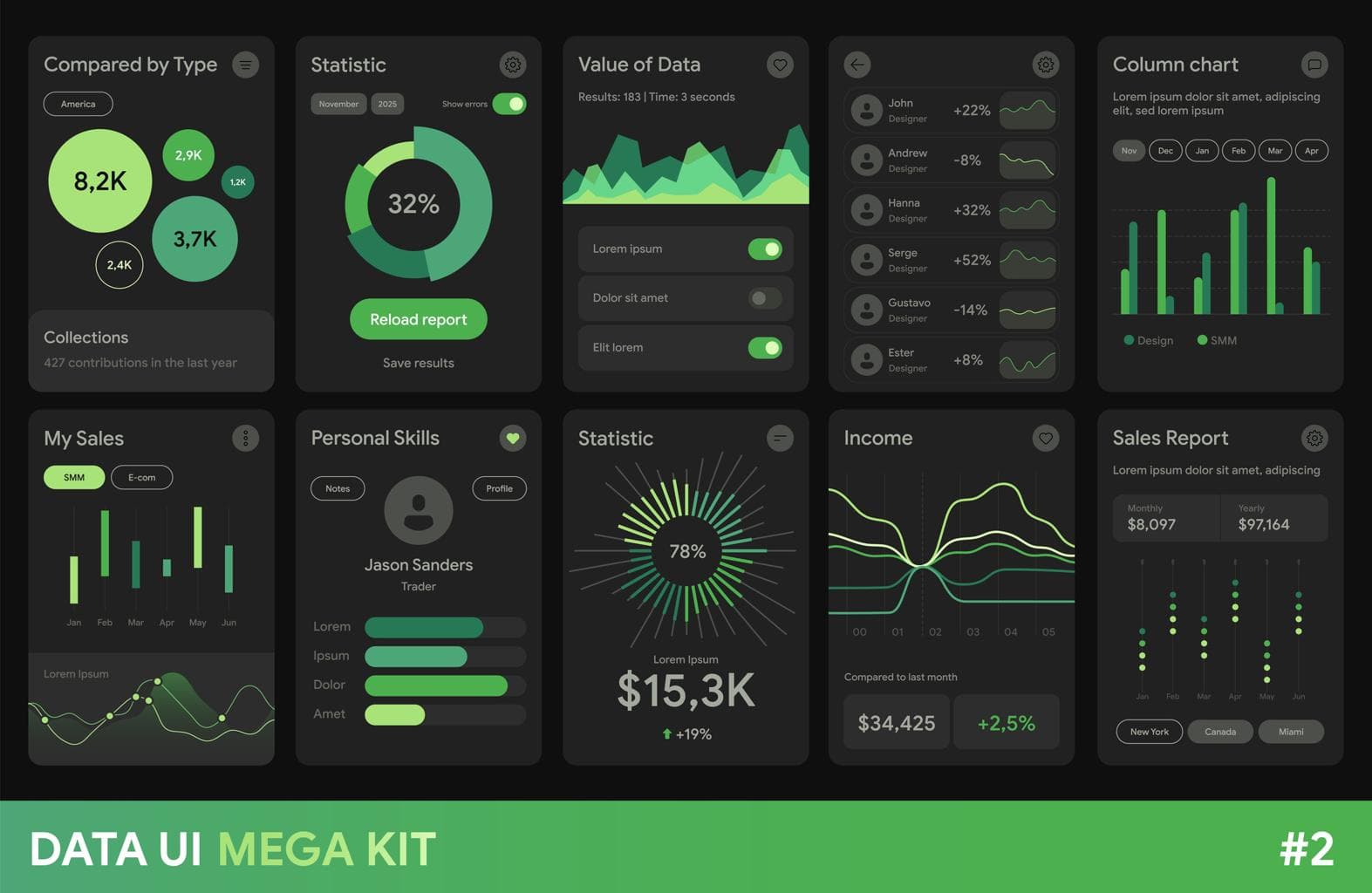
2. Best UI Practices for CRM Systems
Beyond dashboards, the overall UI of a CRM should be consistent, efficient, and forgiving. These best practices apply to every screen—from contact records to report builders:
Consistent navigation – Use a predictable sidebar or top navigation with clear icons and labels. Group related features (e.g., “Sales,” “Marketing,” “Reports”). Provide search that works across all modules. Progressive disclosure – Hide advanced settings behind “More” links or collapsible sections. Don’t overwhelm users with dozens of fields upfront. Inline editing – Allow users to edit fields directly on the list view or record page without opening a separate form. This speeds up data entry. Smart forms – Use conditional logic to show/hide fields based on selections. For example, if “Deal Stage” is “Closed Won,” show fields for revenue and close date. Clear error handling – When a user makes a mistake, highlight the specific field and provide a helpful message (e.g., “Phone number must include country code”). Visual hierarchy – Use typography, spacing, and color to guide attention. Primary actions (Save) should stand out; destructive actions (Delete) should be less prominent or require confirmation. Consistent terminology – Avoid jargon. Use language your team uses (e.g., “Deal” not “Opportunity” if that’s what they call it). Keyboard shortcuts – Power users love shortcuts. Provide tooltips for common actions (e.g., “C” to create a new contact).
| UI Element | Best Practice | Why It Matters |
|---|---|---|
| Search | Global search with filters and recent items | Saves time; users don’t have to navigate through menus |
| List views | Allow column customization, sorting, and bulk actions | Flexibility improves efficiency |
| Activity timeline | Reverse‑chronological view of all interactions (emails, calls, notes) | Gives full context without clicking multiple tabs |
| Modal dialogs | Use for quick actions; keep them small and focused | Reduces context switching |
| Onboarding | Interactive tours for first‑time users | Increases initial adoption and reduces support tickets |
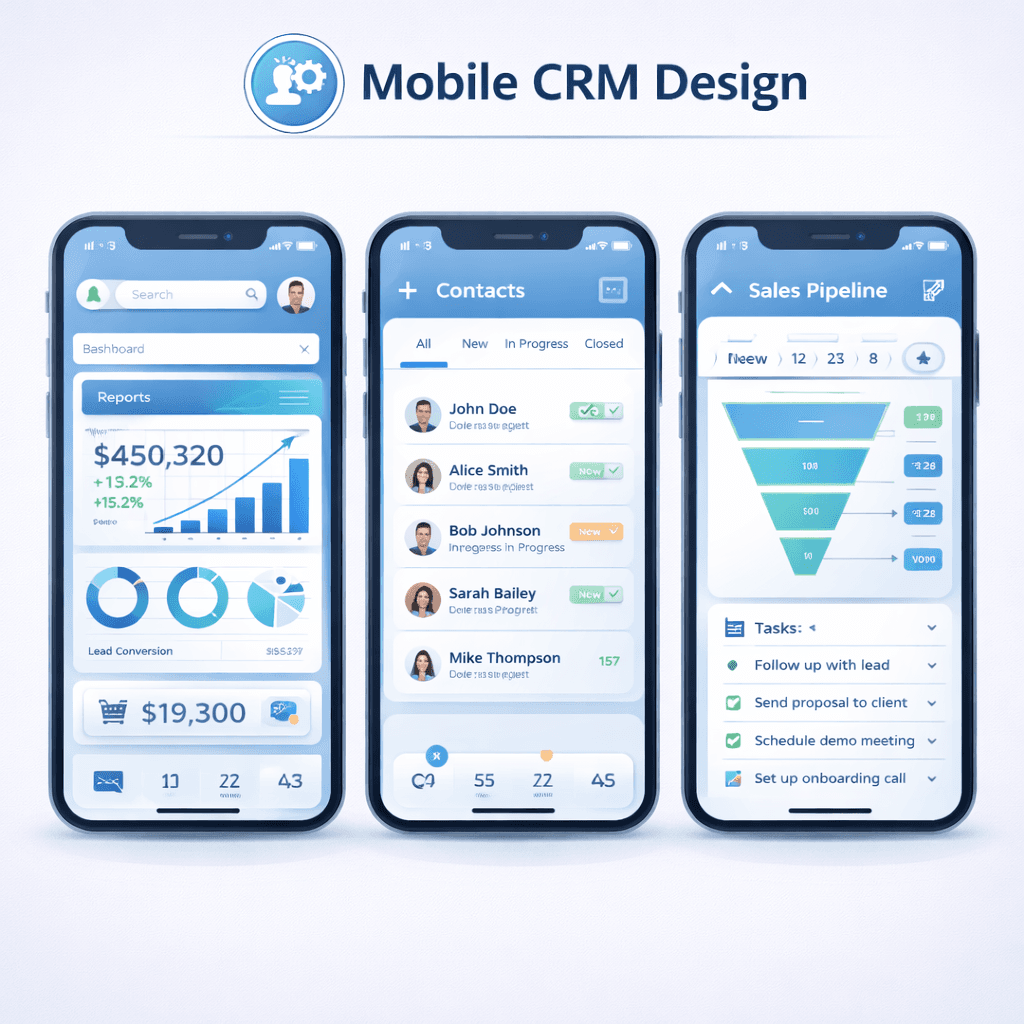
3. Mobile‑Friendly CRM Design: Design for the On‑the‑Go User
Sales and support teams often work from the field—visiting clients, attending events, or traveling. A mobile‑optimized CRM is no longer optional; it’s essential for productivity. According to recent surveys, over 65% of sales professionals use mobile CRM daily. Here’s how to design for mobile:
Responsive vs. native – A responsive web design ensures basic usability on mobile, but a native app (iOS/Android) offers better performance, offline access, and device features (camera, GPS, push notifications). Thumb‑friendly interactions – Place primary actions (add, save, call) in the bottom bar where thumbs naturally rest. Avoid tiny buttons. Offline capability – Users should be able to view contacts, log calls, and update deals even without internet. Data syncs automatically when connectivity returns. Optimized for quick entry – Use voice‑to‑text, dropdown pickers, and auto‑fill to reduce typing. Barcode scanning for products or business cards is a plus. Simplified views – Show only essential fields on mobile; allow drilling down for details. Use cards for lists rather than dense tables. Push notifications – Notify users of important events: new lead assignment, upcoming task, or a deal moving to “Urgent.” Let users customize notification types. One‑handed navigation – Design for a comfortable reach; avoid placing critical buttons at the top left corner (hard to reach with right hand). Location services – Automatically log visits when a user is near a client’s address, or suggest nearby contacts.
Real‑World Example: How a Sales Team Boosted Adoption by 40% with Better UI
A mid‑sized logistics company replaced their outdated, cluttered CRM with a modern platform designed around user needs. Key changes:
- Role‑based dashboards – Each sales rep saw their own pipeline and tasks; managers saw team leaderboards and forecast charts.
- Mobile app – Drivers and field sales could access customer info offline, log delivery notes, and capture signatures.
- Simplified forms – Conditional logic reduced 20‑field forms to 5 visible fields, with the rest hidden until needed.
Results: User adoption climbed from 55% to 95% in 3 months. Sales reps reported saving 1.5 hours per week on data entry, and field teams stopped using paper checklists.
Design Principles for CRM Success
Keep it simple – Don’t let feature bloat create complexity. Prioritize core workflows. Iterate with users – Conduct regular usability testing and gather feedback. Even small changes can improve satisfaction. Accessibility matters – Ensure sufficient color contrast, support screen readers, and provide keyboard navigation for all users. Consistency across devices – Users should feel at home whether they’re on desktop, tablet, or mobile. Shared design patterns reduce learning curve.
Conclusion: Great Design Drives Great Adoption
Investing in CRM UI/UX design pays dividends in user adoption, data quality, and team productivity. By creating role‑specific dashboards, following UI best practices, and optimizing for mobile, you remove friction and empower users to do their best work. Whether you’re selecting a CRM vendor or customizing your existing system, use these principles as your guide. A CRM that users love to use is a CRM that delivers real business results.
🎨 **Want to improve your CRM’s user experience?** [Download our free CRM UI/UX Audit Checklist](/resources/crm-ui-ux-checklist) to evaluate your current interface. Or, book a consultation with our CRM design experts to get personalized recommendations.
Share This Article
📤 Share This